
We are all on video calls constantly, but buying a $150 4K webcam will not fix a terrible picture. The real issue is almost always two things: bad lighting and background clutter. Heavy shadows make you look exhausted, and a desk covered in tangled cables looks highly unprofessional. Here are five straightforward ways to upgrade your home office video call setup, from smoothing out harsh shadows to finally hiding those ugly wires.
1. Fix Shadows with Front Lighting (Ring Lights & LED Panels)
Relying purely on the ceiling light casts harsh shadows directly under your eyes and chin. The fix is adding a soft light pointing toward your face. Place a ring light or a small LED panel just behind your camera, or slightly off to the side at a 45-degree angle. Aim for a color temperature between 4000K and 5000K to mimic natural daylight. If you are short on space, grab a compact light that clips directly onto your monitor.
2. Separate Yourself from the Wall with Background Lighting
If the rest of the room is totally dark, you will look like a floating head pasted onto a flat background. You need a background or “rim” light to create depth. Point a small floor lamp at the bookshelf behind you, or run a simple LED strip behind your desk. It just needs to softly illuminate the wall so your shoulders stand out clearly from the background.
3. Prevent Screen Glare with a Monitor Light Bar
Using a standard desk lamp creates a massive, glowing reflection on your screen that washes out the webcam picture. The best workaround is a monitor light bar. These sit right on top of your screen and use an asymmetrical lens to shine light down onto your keyboard without hitting the glass of the monitor. You get a bright workspace without any annoying glare.
4. Hide the Wires with a Cable Management Box
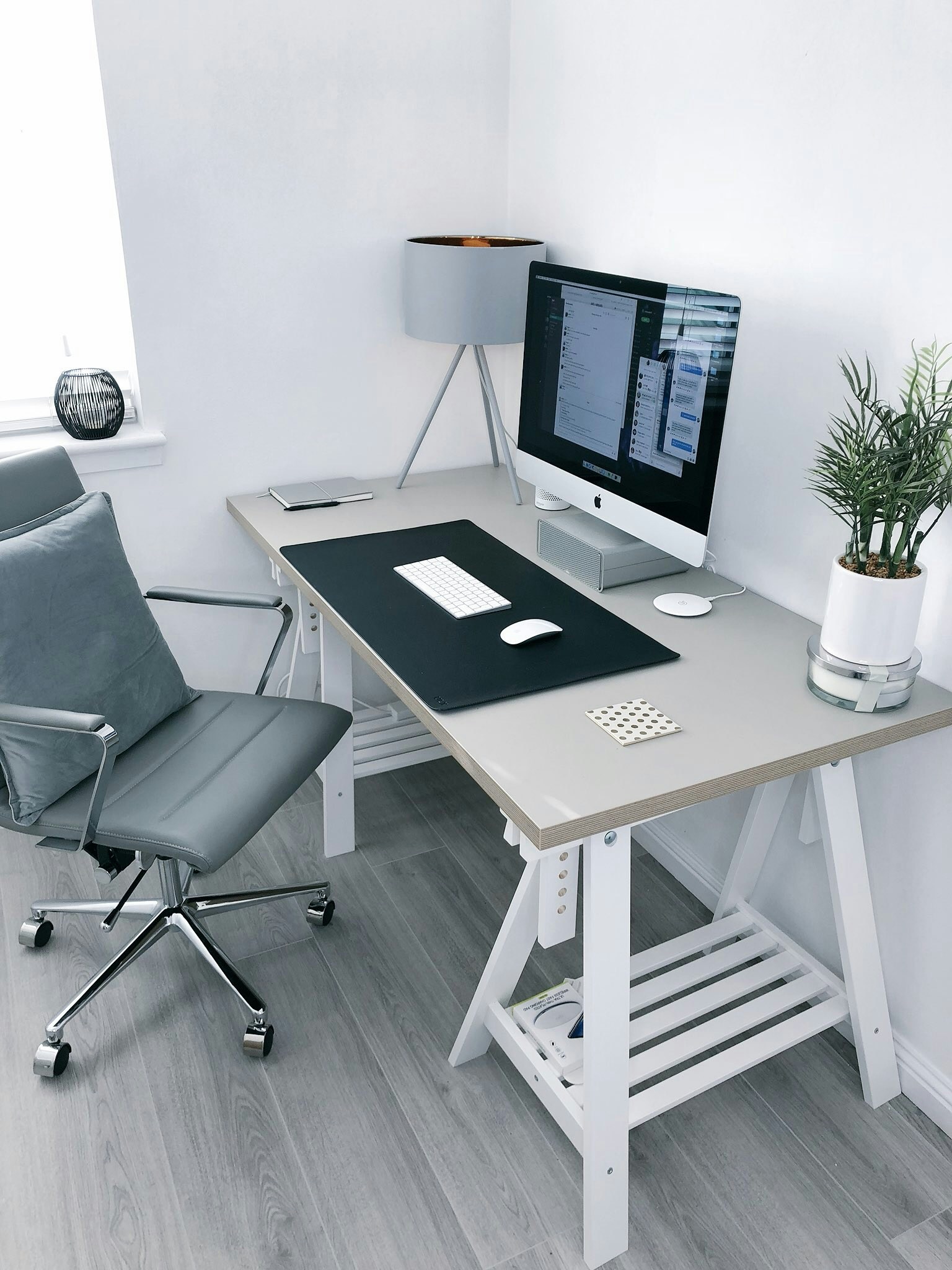
Cameras tend to magnify clutter, and stray cables on a Zoom call look chaotic. First, get the power strips off the floor using a cable management box. Just drop the surge protector inside, route the wires through the side slots, and the mess disappears. Next, use a monitor arm or stand to lift your screen, creating a “garage” to slide your keyboard away. Grab a small desk organizer for your pens and flash drives to keep only the essentials in view.
5. Curate Your Background Zone for Professional Video Calls
An overflowing laundry basket or an open closet door is incredibly distracting. You do not need to redecorate your entire house; just focus on the specific rectangle the webcam can see. Keep it simple. If you have a bookshelf in the shot, leave some empty space and add an easy-to-care-for plant. If you cannot control the clutter in that room, a simple folding screen placed right behind your chair works wonders.
The 5-Minute Video Call Setup Test
Before your next big meeting, run through this quick rehearsal to ensure your workspace is completely ready:
- Turn your webcam on and open the preview window.
- Adjust your monitor arm or laptop stand so the camera is exactly at eye level.
- Turn on your front LED panel or ring light and turn off the overhead ceiling light.
- Move any stray coffee mugs or loose papers out of the frame.
- Check how the background looks and adjust your chair or folding screen if needed. You don’t need a Hollywood budget to look great on a call. A few smart adjustments to your lighting and a little bit of tidying up will completely change how people see you.